Search is often treated as infrastructure. In production, though, it behaves much more like an application API. It accepts user traffic, exposes business data, powers dashboards, and often sits close to records that shouldn't be open to every client on the network.
Manticore Search now (since release 27.1.5 ) has built-in authentication and authorization for SQL over the MySQL protocol, HTTP/HTTPS endpoints, and replication-related operations.
Authentication vs authorization comes down to two questions. Authentication answers "who is calling?" Authorization answers "what is this user allowed to do?"
Users who already work with Manticore can access the new functionality while keeping their familiar Manticore workflows. Existing SQL and HTTP clients retain their usual connection patterns. Applications require only minimal changes.
What Manticore Adds
- SQL/MySQL password authentication with
mysql_native_password. - HTTP Basic authentication with the same user name and password.
- HTTP Bearer token authentication for clients that shouldn't send a password on every request.
- Permissions for five clear actions:
read,write,schema,replication, andadmin. - Targets such as
products,logs_*,posts, and*. - SQL commands for managing users, tokens, and permissions.
- Auth logging with
disabled,error,warning,info,all, andtracelevels. The default isinfo.
The access model is deliberately designed small. You just create users, grant the actions they need, update your app to send credentials, and test that denied operations are actually denied.
Enable Authentication
Authentication is controlled by the auth setting in the searchd section.
In RT mode
, use auth = 1. Manticore stores auth data in auth.json under data_dir.
searchd {
    data_dir = /var/lib/manticore
    auth = 1
    auth_log_level = info
}
To disable authentication explicitly in RT mode, use auth = 0 or remove the setting.
In plain mode, set auth to the auth file path:
searchd {
    auth = /var/lib/manticore/auth.json
    auth_log_level = info
}
Use SSL for SQL connections or HTTPS for HTTP clients when passwords or bearer tokens cross a network.
Keep the auth file private. Before the first bootstrap, Manticore may create an empty auth file. After bootstrap, that file stores auth data and credential hashes.
Bootstrap the First Administrator
After enabling auth, start searchd. Then create the first administrator with the same configuration file:
searchd --config /etc/manticoresearch/manticore.conf --auth
For automation, use the non-interactive bootstrap mode:
printf 'admin\nStrongPass#2026\nStrongPass#2026\n' | \
  searchd --config /etc/manticoresearch/manticore.conf --auth-non-interactive
Bootstrap requires a running daemon. It creates the first administrator and grants that user all actions.
It doesn't return a bearer token. If the admin user needs HTTP Bearer access, connect as that admin and run TOKEN, or call the HTTP POST /token endpoint.
Create Users
After initializing the administrator, you can use the account to manage users and permissions through SQL commands. However, do not use it in the application. Instead, create separate users for specific tasks.
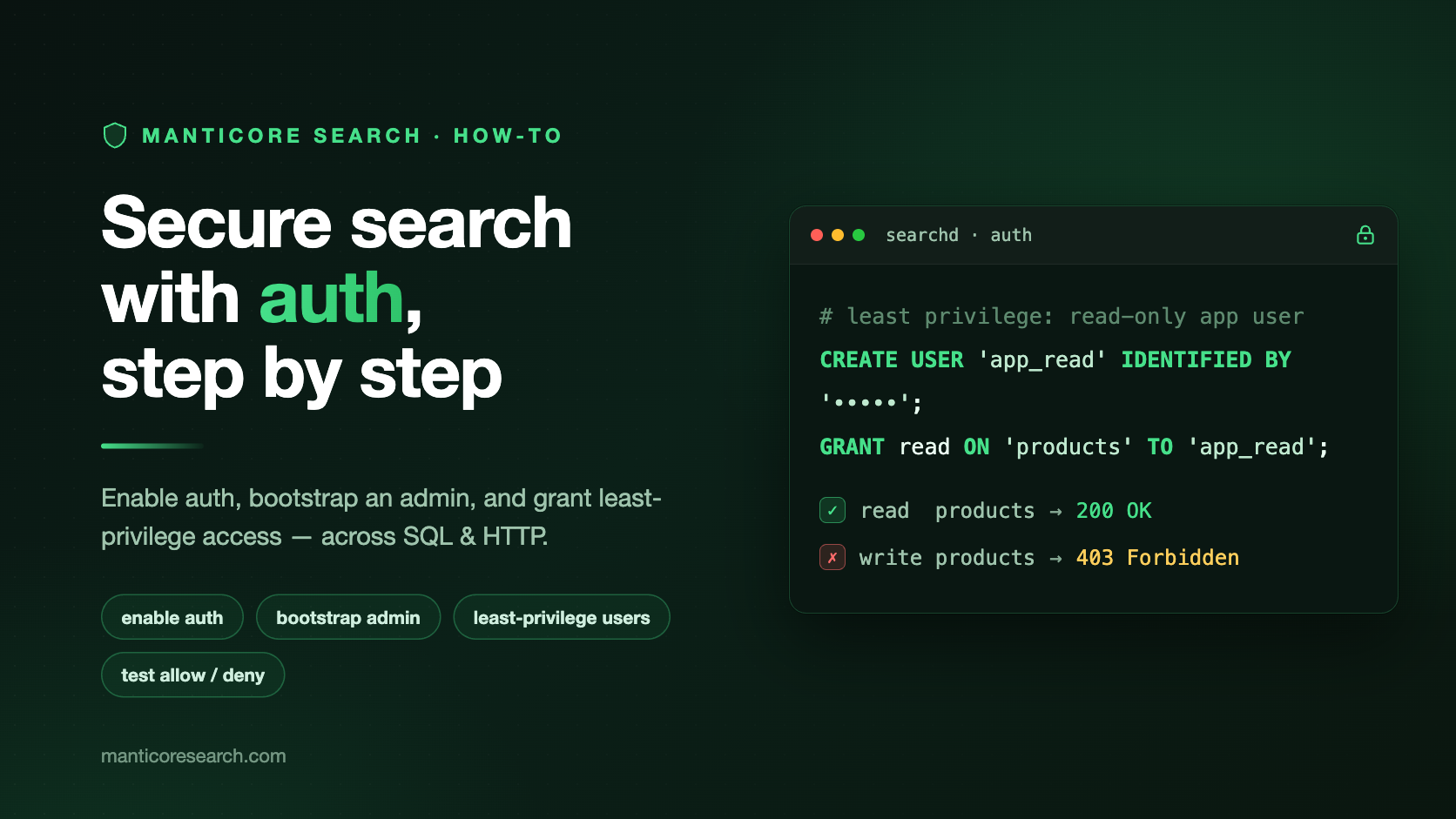
For example, a search frontend that only reads from products needs read, not write, schema, replication, or admin:
CREATE USER 'app_read' IDENTIFIED BY 'ReadPass#2026';
GRANT read ON 'products' TO 'app_read';
CREATE USER returns a raw bearer token for the new user. Store it immediately. Manticore won't show the raw token again.
To create or rotate a bearer token later:
TOKEN 'app_read';
TOKEN 'app_read' returns a new raw token that is ready to use. SHOW TOKEN shows the stored token hash, not the token to send in an HTTP request. This is useful for verification and audit: you can confirm that a token exists or changed after rotation without exposing the raw secret:
SHOW TOKEN FOR 'app_read';
SET PASSWORD changes the password used by SQL/MySQL and HTTP Basic auth:
SET PASSWORD 'NewReadPass#2026' FOR 'app_read';
It doesn't revoke existing bearer tokens. To rotate Bearer access, create a new token with TOKEN or POST /token:
TOKEN 'app_read';
An ingest pipeline can get write without broader access:
CREATE USER 'app_ingest' IDENTIFIED BY 'IngestPass#2026';
GRANT write ON 'products' TO 'app_ingest';
A table schema migration job can get schema:
CREATE USER 'schema_job' IDENTIFIED BY 'SchemaPass#2026';
GRANT schema ON 'products' TO 'schema_job';
An auth administrator can get admin privileges:
CREATE USER 'security_admin' IDENTIFIED BY 'AdminPass#2026';
GRANT admin ON * TO 'security_admin';
admin privileges only manage authentication and authorization state. They don't imply read, write, schema, or replication. Grant those separately when the same user really needs them.
Connect with SQL and HTTP
mysql clients authenticate with a Manticore user name and password:
MYSQL_PWD=ReadPass#2026 \
  mysql -h127.0.0.1 -P9306 -uapp_read \
  -e "SELECT * FROM products LIMIT 10"
HTTP/HTTPS clients can use Basic authentication, as in this curl basic auth example:
curl -u app_read:ReadPass#2026 \
  http://127.0.0.1:9308/sql?mode=raw \
  -d "SELECT * FROM products LIMIT 10"
They can also use a bearer token returned by the CREATE USER, TOKEN, or POST /token commands; the curl bearer token request looks like this:
curl -H "Authorization: Bearer <app_read_token>" \
  http://127.0.0.1:9308/sql?mode=raw \
  -d "SELECT * FROM products LIMIT 10"
The Basic and Bearer authentication schemes are case-insensitive. User names are case-sensitive.
The permission check is the same either way. The client authenticates, Manticore identifies the user, and checks the requested action against that user's permissions.
Testing After Enabling Authentication
Tip: when enabling access to Manticore, don't stop at confirming that the client can connect after authentication is enabled. Also test denied access and how your application reacts to it.
The app_read user should be able to read from products:
curl -H "Authorization: Bearer <app_read_token>" \
  http://127.0.0.1:9308/sql?mode=raw \
  -d "SELECT * FROM products LIMIT 10"
The same user shouldn't be able to write to products:
curl -H "Authorization: Bearer <app_read_token>" \
  http://127.0.0.1:9308/sql?mode=raw \
  -d "INSERT INTO products(id,title) VALUES(1,'test')"
That error is expected. Over HTTP, a valid user without permission gets 403 Forbidden. Over SQL/MySQL, Manticore reports ERROR 1045 with a permission-denied message.
How Manticore Checks What Is Allowed and Denied
Manticore permissions are action and target rules. If no rule allows the requested action on the requested target, access is denied.
The short version:
- Rules are matched for the requested action only.
admindoesn't satisfyread,write,schema, orreplication. WITH ALLOW 0creates an explicit deny.- Any matching explicit deny wins, including over more specific allow rules.
- If no matching allow exists, access is denied.
For example:
CREATE USER 'analyst' IDENTIFIED BY 'AnalystPass#2026';
GRANT read ON * TO 'analyst';
GRANT read ON 'private_logs' TO 'analyst' WITH ALLOW 0;
The analyst user can read other tables, but can't read private_logs.
A wildcard deny plus an exact allow can't be used as an exception pattern. If the deny matches the request, it still wins.
Roll Out Access on an Existing Deployment
For an existing Manticore deployment, handle auth as a staged rollout rather than switching everything at once:
- Inventory SQL and HTTP clients that connect to Manticore.
- Choose the auth file path:
auth.jsonunderdata_dirin RT mode, or an explicit path in plain mode. - Enable auth in staging.
- Bootstrap the first administrator.
- Create least-privilege users for search, ingest, schema changes, replication, and auth administration.
- Update your application's SQL connection code to send user names and passwords.
- Update your HTTP/HTTPS connection code to use Basic authentication or Bearer tokens.
- Verify expected success and expected denial for each application user.
- Configure an appropriate auth logging level and make sure the log is stored safely with the rest of your operational logs.
- Roll out gradually, and after cutover rotate credentials for extra safety and an additional test and training pass.
Distributed tables need one extra check. Remote-agent queries authenticate as the current session user, so the remote daemon needs matching auth material for that user and the required permission on the remote target table.
Replication clusters use the replication action. When auth is enabled, cluster joins can replace local auth data with auth data from the donor cluster, so keep auth material consistent across nodes before joining. During cluster work, handle the auth log (by default, the searchd.log.auth file) carefully because it can contain salts and credential hashes.
Full Reference
The manual page covers the full command set and operational details for the new functionality, including password policy, auth logging levels, SHOW USERS, SHOW PERMISSIONS, RELOAD AUTH, distributed remote agents, and replication clusters:
Authentication and authorization manual
But for most applications, the path is direct: enable auth, bootstrap an admin, create least-privilege users, update clients, and verify that the right requests are allowed while the wrong ones are denied.